> ## Documentation Index
> Fetch the complete documentation index at: https://docs.zelinqa.ai/llms.txt
> Use this file to discover all available pages before exploring further.
# Parameters
> Configure the identity of your NBQ agent.
The **Parameters** tab (*Paramètres*) holds the identity fields for your NBQ agent.
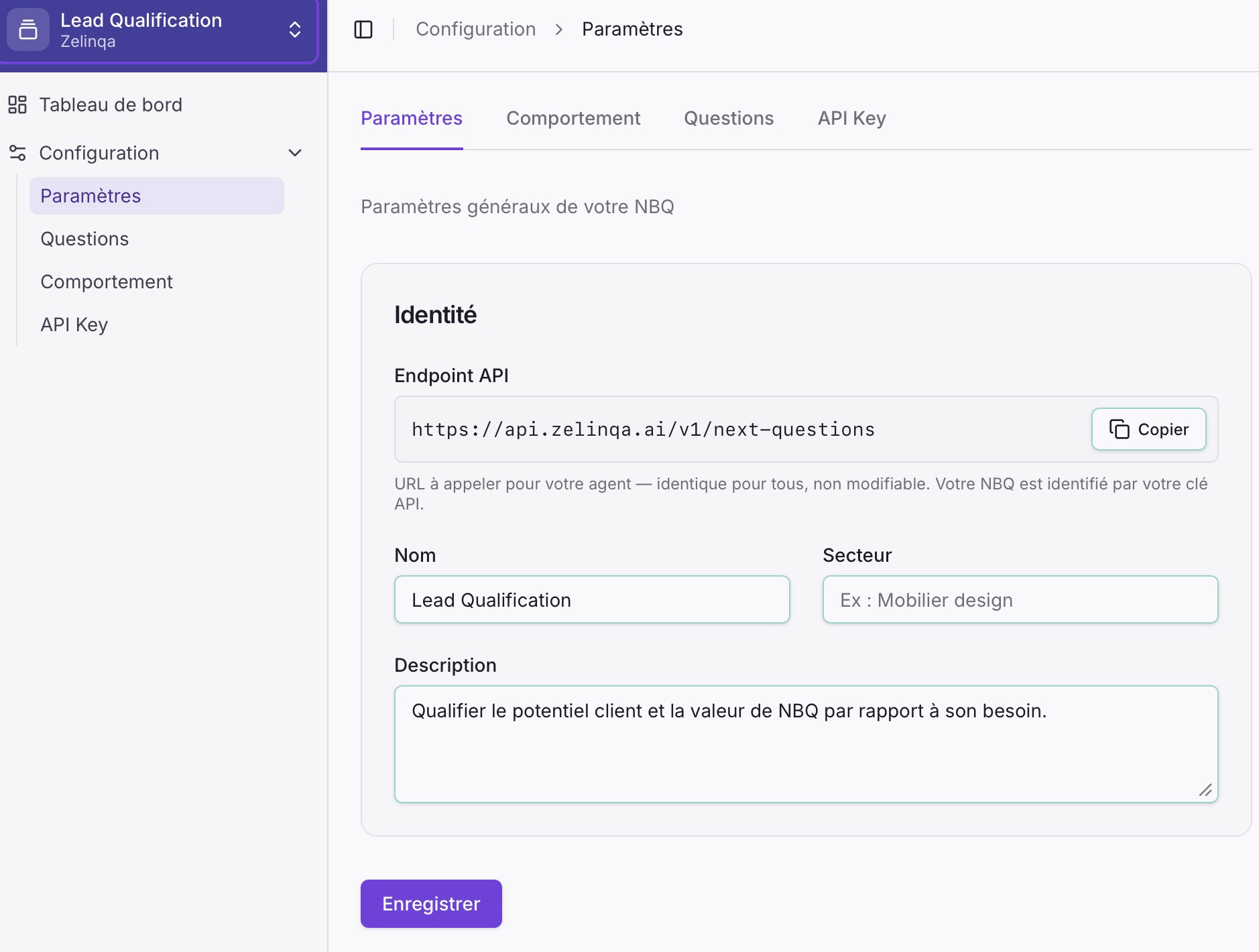 The tab shows your **API endpoint** (fixed, not editable — your NBQ instance is identified by your API key, not the URL), and three editable fields: **Name**, **Sector**, and **Description**. Hit **Save** (*Enregistrer*) to save any changes.
## Configuration fields
| Field | Required | Description |
| --------------- | -------- | ------------------------------------------------------------------------------ |
| **Name** | Yes | A human-readable label for this agent (e.g. "Outdoor Furniture Qualifier") |
| **Sector** | Yes | The business area this agent operates in (e.g. "Design furniture", "B2B SaaS") |
| **Description** | No | A short free-text description of the agent's purpose |
## Danger zone
The Parameters tab includes a **danger zone** that lets you permanently delete the agent and all its data (questions, behaviour settings, API keys, and conversation history). This action cannot be undone.
## How to update
Log in and navigate to your NBQ instance.
Click **Configuration → Parameters** (*Paramètres*).
Update the fields and click **Save**. Changes apply immediately.
The tab shows your **API endpoint** (fixed, not editable — your NBQ instance is identified by your API key, not the URL), and three editable fields: **Name**, **Sector**, and **Description**. Hit **Save** (*Enregistrer*) to save any changes.
## Configuration fields
| Field | Required | Description |
| --------------- | -------- | ------------------------------------------------------------------------------ |
| **Name** | Yes | A human-readable label for this agent (e.g. "Outdoor Furniture Qualifier") |
| **Sector** | Yes | The business area this agent operates in (e.g. "Design furniture", "B2B SaaS") |
| **Description** | No | A short free-text description of the agent's purpose |
## Danger zone
The Parameters tab includes a **danger zone** that lets you permanently delete the agent and all its data (questions, behaviour settings, API keys, and conversation history). This action cannot be undone.
## How to update
Log in and navigate to your NBQ instance.
Click **Configuration → Parameters** (*Paramètres*).
Update the fields and click **Save**. Changes apply immediately.